
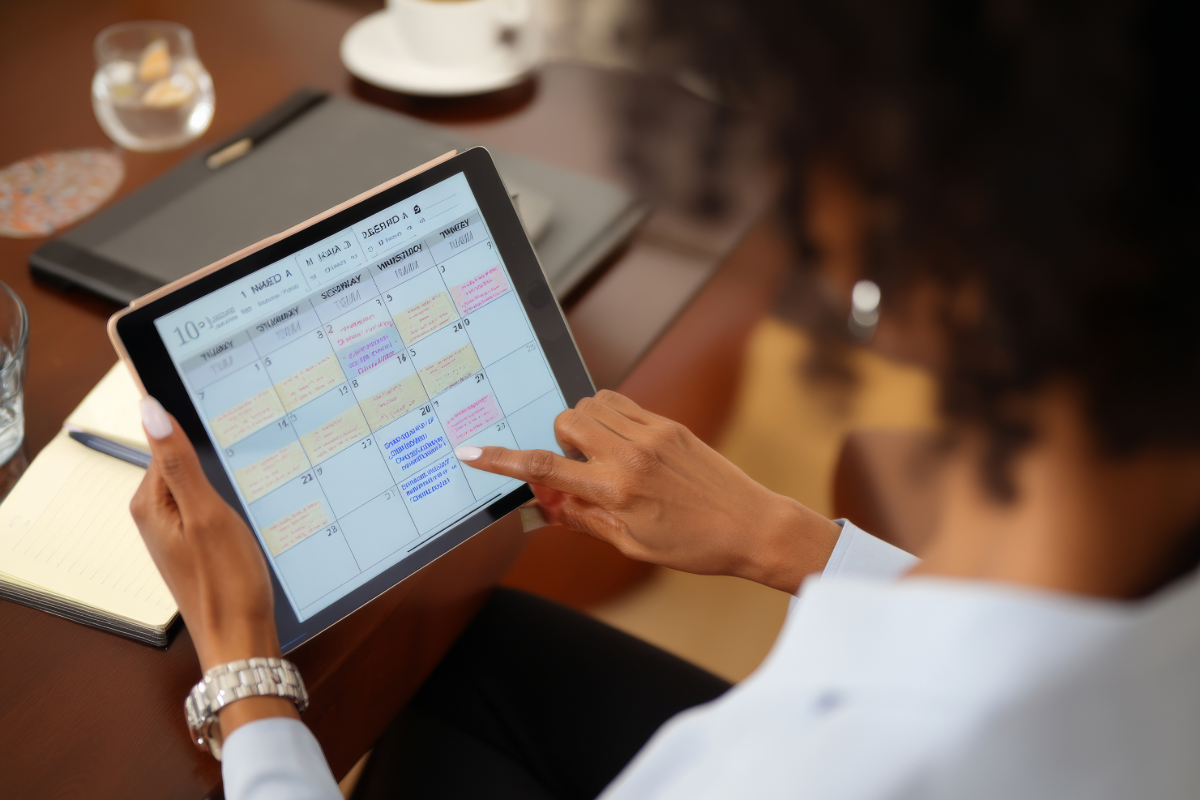
Coordinating meetings across time zones has become a standard challenge for modern teams. With 16% of companies now fully remote and many operating globally, the question isn’t whether you’ll schedule across time zones, it’s how efficiently you’ll do it. The wrong approach leads to missed meetings, frustrated team members, and inevitable “Wait, what time is it for you?” confusion.
With the right calendar system, scheduling across time zones becomes automatic rather than agonizing.
The Time Zone Scheduling Challenge
Common Pain Points: Mental math errors, daylight saving time conflicts, finding overlap across 6+ zones, toggling between multiple tools, recalculating last-minute changes, wrong times in meeting invites.
These challenges compound when managing multiple recurring sessions and work and life balance across schedules.
Why Traditional Tools Fall Short
Most time zone converters work as separate websites requiring manual calendar entry. This creates: context switching between multiple tools, no automation for conversions, limited visibility into existing commitments, and scheduling blind spots without seeing team calendars alongside time zones.
Time Zone Meeting Tools Comparison
| Feature | Standalone Converters | Basic Calendar Apps | Fhynix Calendar-First |
| Automatic Time Conversion | Manual calculation | Yes, but limited | Yes, fully automated |
| Multiple Calendar Integration | No | Sometimes | Yes – Google, Apple, Microsoft |
| Family/Team Visibility | No | Limited sharing | Full family/team sharing |
| Personal + Work Schedule | No | Separate views | Unified timeline |
| Smart Reminders | No | In-app only | WhatsApp for calendar events |
| Recurring Meeting Support | No | Yes | Yes, with time zone awareness |
| Daylight Saving Adjustments | Manual | Sometimes | Automatic |
The Calendar-First Solution

Fhynix’s calendar-first approach handles time zones automatically within your unified schedule.
Unified Calendar View: All meetings across time zones appear on one timeline at correct local times automatically.
Automatic Conversion: Schedule in any zone and it displays correctly for all participants. No manual math or errors.
Smart Scheduling: See existing commitments while scheduling to prevent double-booking or conflicts.
WhatsApp Reminders for Calendar Events: Get reminders through WhatsApp, crucial for early/late meetings across zones.
External Calendar Integration: Pull in Google, Microsoft, and Apple calendars for complete visibility.
Family Coordination: Family sees late-night international meetings on shared calendar, preventing conflicts.
For complex schedules spanning work and personal life, time management tools and techniques to plan smarter helps you stay organized.
Best Practices for Time Zone Scheduling
Establish Reference Time: Choose one default zone (headquarters or GMT/UTC) to reduce confusion.
Use Recurring Smart Scheduling: Set recurring events that auto-adjust for daylight saving time changes.
Block Buffer Time: Schedule 15-30 minute buffers before/after cross-timezone meetings.
Rotate Inconvenient Times: If spanning too many zones, rotate meeting times so burden doesn’t always fall on same people.
Share Calendar Links: Share calendars directly rather than describing times. For comprehensive strategies, how to plan your day everyday productivity made easy offers frameworks working across zones.
Common Scenarios
Global Team: Scheduling across San Francisco, New York, London, Sydney. Unified calendar shows 8 AM Pacific works (11 AM EST, 4 PM GMT, 3 AM AEDT). Rotate monthly.
Client Across Zones: Share calendar link, they see slots in their zone and book directly.
Conference Call: Schedule once; calendar shows correct times for all, including DST adjustments.
For multiple commitments, best productivity apps streamline the process.
Frequently Asked Questions
Q: How do I handle daylight saving time changes for future meetings?
A: Proper calendar systems (like Fhynix) automatically adjust for DST changes. When scheduling months ahead, the system accounts for clock changes, ensuring everyone sees correct local time.
Q: How do I find overlapping working hours across zones?
A: Use a unified calendar showing all team members’ time zones simultaneously. Look for windows where all participants are within typical working hours (9 AM-6 PM local). For widely distributed teams, rotating times or asynchronous communication may be needed.
Q: How can I avoid scheduling during personal time?
A: Shared calendars integrating work and personal schedules prevent this. When team members mark personal commitments with appropriate sharing, you see genuine unavailability. Best daily routine applications that unify all life areas become essential.
Q: Should I schedule in my time zone or theirs?
A: Schedule in whichever makes sense, but use automatic conversion systems. If you’re organizing, schedule in your zone and let the system handle conversion for all participants.
Making Time Zone Scheduling Automatic
The key to effortless time zone scheduling isn’t better mental math, it’s a calendar-first system that handles conversions automatically while showing your complete schedule.
When you see existing commitments, team availability, and family obligations on one timeline that auto-adjusts for zones, scheduling becomes simple. No more double-booking, no accidental personal time conflicts, no wrong meeting times.
For students managing classes across zones, best school planner apps offer similar coordination. For time blocking across zones, best planner for time blocking strategies help protect focused time.
Start by consolidating calendars into one unified view, setting automatic time zone handling, and establishing clear practices with your global team. The goal: make time zones stop being a barrier to collaboration.
